Design systems are a lot like community gardens. Everything in a system has a natural life cycle that begins with a human need, eventually grows into a fully-formed component or pattern, and (if nurtured) evolves over time.
System practitioners spend a lot of time focused on the beginning of this life cycle—how does the content of our system come to exist? How does it find its way into the system, and how can our communities play a key role in that process? We sometimes spend so much time focused on the early parts of this lifecycle that we forget to account for how content grows and evolves within our system.
At any given time, a garden may have plants that are flourishing and plants that are withering or dying. Likewise, a design system may have some content that captures the latest and greatest thinking around your product or brand, and some content that may no longer be accurate.
While it might be uncomfortable to acknowledge that everything in your system is not accurate, out-of-date content is a reality for any design system that supports an actively evolving product or brand. Acknowledging and planning for this is important for both the team managing your design system, and the users of that system. Without understanding the health of our system, the teams responsible for their upkeep can’t accurately prioritize work to maintain them, and our users lack confidence because healthy content is treated and presented the same way as out of date content.
Of course, understanding the health of a garden is a lot easier than understanding of the health of a design system. Plants visibly wither and die, whereas design patterns and guidelines slowly become divorced from the implementation they are intended to support.
Sprout Social’s design system, Seeds, has matured and grown significantly over the past year. In order to ensure we can continue to grow in a responsible way, my team recently set out to paint a clearer picture of the health of our design system for our own purposes, and for the benefit of our users.
Defining health
In order to surface content health in Seeds, we had to first develop a shared definition of what “health” means for content in a design system. This was by far the most challenging aspect of the project, because there are so many factors that can influence health. In fact, this definition will likely be unique to every design system.
In this case, it was helpful for us to work from the outside in by defining the extremes of health in our system. This made things a lot more clear—we know that the positive extreme is simply healthy, up-to-date content, and the negative extreme is removing a piece of content from the system entirely. Of course, there’s a lot of nuance between those two extremes. How do we separate content that doesn’t fall into those buckets, and how much of that nuance do we need to expose to our users? For the answers to those questions, we asked them directly.
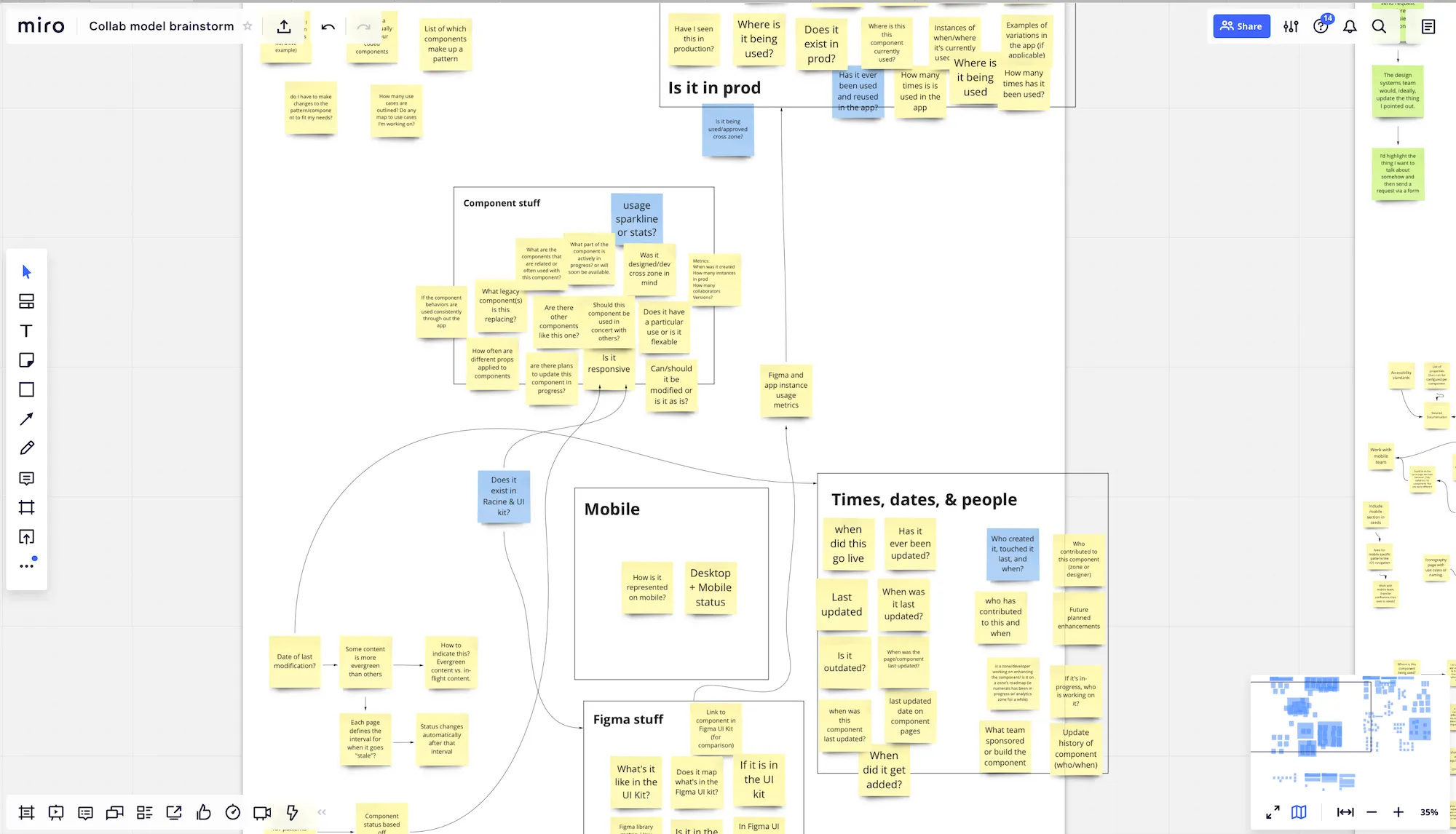
We ran a brainstorm with some of our users where we asked them to think about what factors might determine the health of content in our system. Our goal was to determine which “vital signs” our users look for when they are consuming our system. Here are some of the broader themes that we discovered:
Times, dates, and people. Consumers want insight into the history of content in our system—when was it created, when was it last updated, and by whom.
UI kit availability. Lots of designers attributed the health of a component to whether or not it was represented in our Figma UI kit.
Cross-platform availability. While our design system is currently focused on our web products, we do have lots of internal documentation on our mobile products that have not yet made it into the system. Our users think of patterns or components with mobile counterparts as being more healthy.
Usage information. This theme is essentially “how often and where is this component or pattern used in our product(s)?” Frustratingly, this metric is one of the most difficult for our team to measure (as I am sure is true for many system teams).
Known issues and planned enhancements. Our design system team has a clear sense of where the system is lacking, and what work is currently ongoing or planned. Our users, however, wanted more insight into that information.
A screenshot of the results of our brainstorm with the team.
We then took these themes and broke out every discrete piece of relevant information that could be tracked and surfaced, based on the type of content in our system. Unfortunately, we had to filter out any vital signs that were not currently possible for us to track. Most of these were related to when and where in our products a certain component/pattern is used—although this didn’t make it into our v1 solution, we have plans for how we could track and surface this in future iterations.
In the end, we decided on the following vital signs to track for our first iteration:
Publish date
Last modified date
UI kit availability
Mobile counterpart
Known issues
Planned enhancements
In addition to these vital signs, we also decided to rate each page in our system with an overall health status, which I’ll discuss more in a bit. That status is based on these vital signs, and so it was important that we gathered this data before making decisions around status.
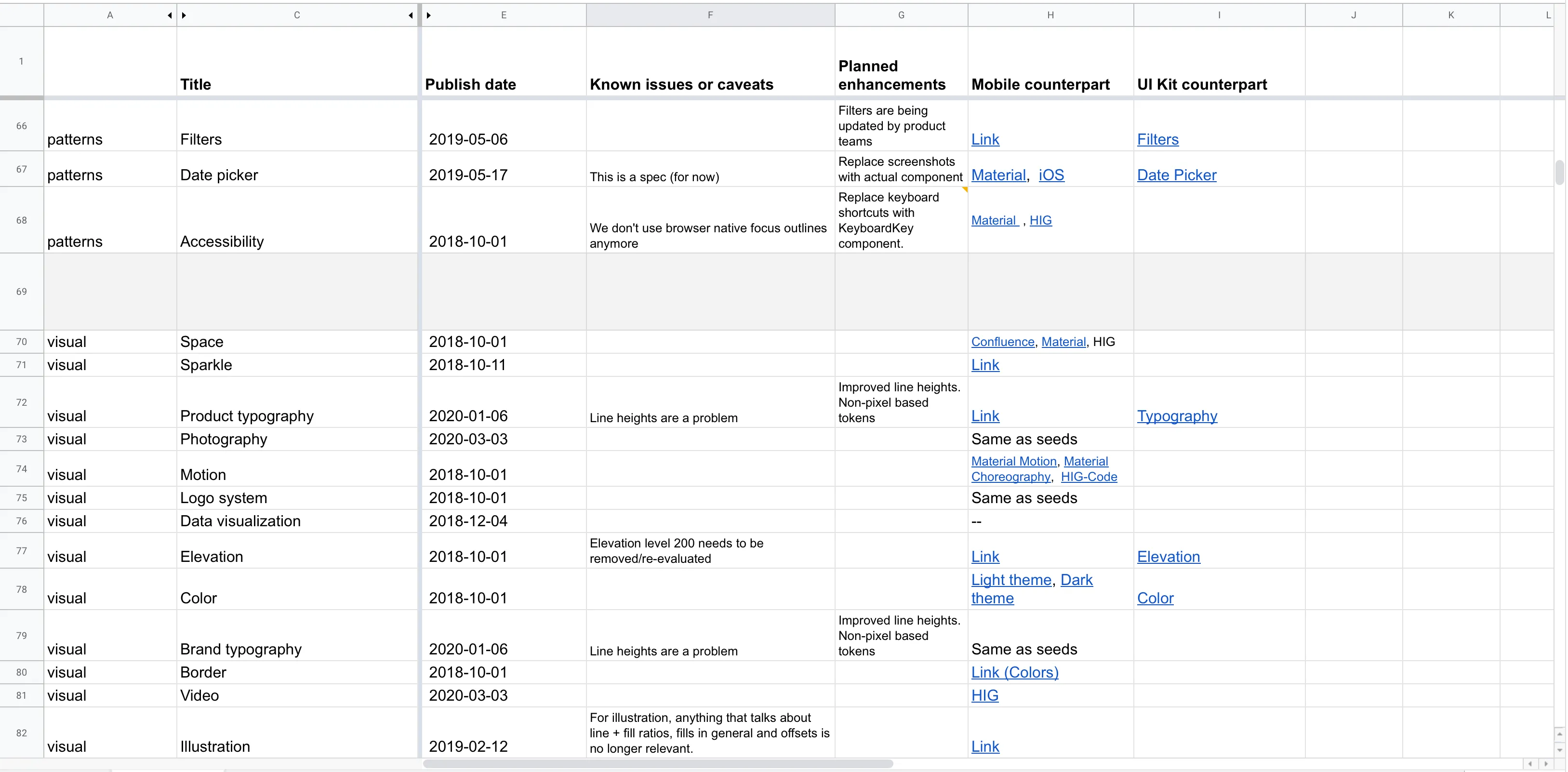
As is common when working on a design system, we turned to a spreadsheet for this. We inputted every page of our system, and created columns for each vital sign we needed to track down.
Luckily, tracking down the publish date for all our content was easy—since our system’s content lives in GitHub, we simply had to look at the content’s commit history to see when it was first added.
The last modified date was a bit trickier. Finding the date isn’t a problem (GitHub again), but manually tracking and updating these dates as content changes seemed like too much overhead. We wanted our health tracking system to be as effortless as possible, without adding extra burden for us to maintain over time. Enter the magic of serverless functions…
I was able to write a function (hosted on Netlify) that queries the Github API to retrieve the date of the last commit for a given file path. Now, instead of tracking last modified dates manually for every page in our system, Seeds instead queries for this date automatically. This means it’s always accurate, and our team doesn’t have to think about updating the date whenever we modify content.
For tracking down UI kit and mobile counterparts, we turned to our teammates. We asked the domain experts across our teams to help us gather up links to components in our Figma UI kit and mobile documentation in our internal wiki, as well as system documentation from Apple’s Human Interface Guidelines and Google’s Material Design guidelines for instances where we default to system behavior. During this process, we asked those experts to identify whether missing content was something that needed to be added to our system, or if it was inapplicable to the system. For instance, our Stack component has no counterpart in Figma because it’s a layout utility. However, this being missing does not indicate that Stack is less healthy than other components that do have counterparts in our UI Kit. Context is king when communicating the health of something as nuanced as a design system.
Finally, known issues and planned enhancements were the easiest for us to source because the design systems team knows our system intimately, including its shortcomings and roadmap. Our team sat down to go through every page together and list out the major issues and work we knew was planned or in the works. For our partner content, like writing and brand guidelines, we reached out to those teams directly to have them weigh in.
Collectively, these vital signs painted a clear picture of the health of our system. The spreadsheet alone would have been a useful resource for both our team and our stakeholders, but we knew that a much more powerful solution would be to surface this information contextual, within the system itself.
Communicating health
When planning this project, we discovered that there were two primary user needs we needed to fulfill when surfacing health in our system:
Users need a stop/wait/go signal when evaluating whether or not to use some part of our system.
Users need research assistance. When scrutinizing content in our system, users want rich information to assist in their investigation. Contributors to the system likewise often need a reference point when making updates and evolving content.
Each of these needs are on the opposite end of the interaction spectrum—the former is a quick signal that should immediately communicate the proper status to the user, while the latter is much more involved and requires intent from the user.
Due to these contrasting needs, we decided to break content health down into two parts:
A health label that quickly clues the user into the general health of some piece of content. This status not only indicates health, but also serves as an indicator for users browsing content in Seeds—should they continue reading, or is there reason to stop and investigate?
A ”scorecard” that includes a variety of metadata and information to help users understand health, and to prompt them to contribute to the system directly.
Health labels
Quickly communicating health is surprisingly challenging—there are a huge pool of metaphors and ideas to pull from. For instance, how might we quickly communicate that something is in good health? Here are just some of the words we might use:
Mature
Fresh
Healthy
Strong
Good
Active
Our team spent a lot of time evaluating language to find just the right terms. We avoided words like “mature” that falsely associated age with health—some content in a design system is naturally more evergreen than others, and age doesn’t paint a complete picture of health. We also avoided words like “dead” that are overly harsh and insensitive.
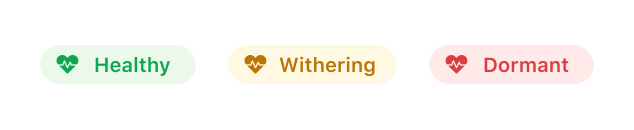
In the end, we landed on the following status labels, which just happen to fit into the plant theme we have going on at Sprout:
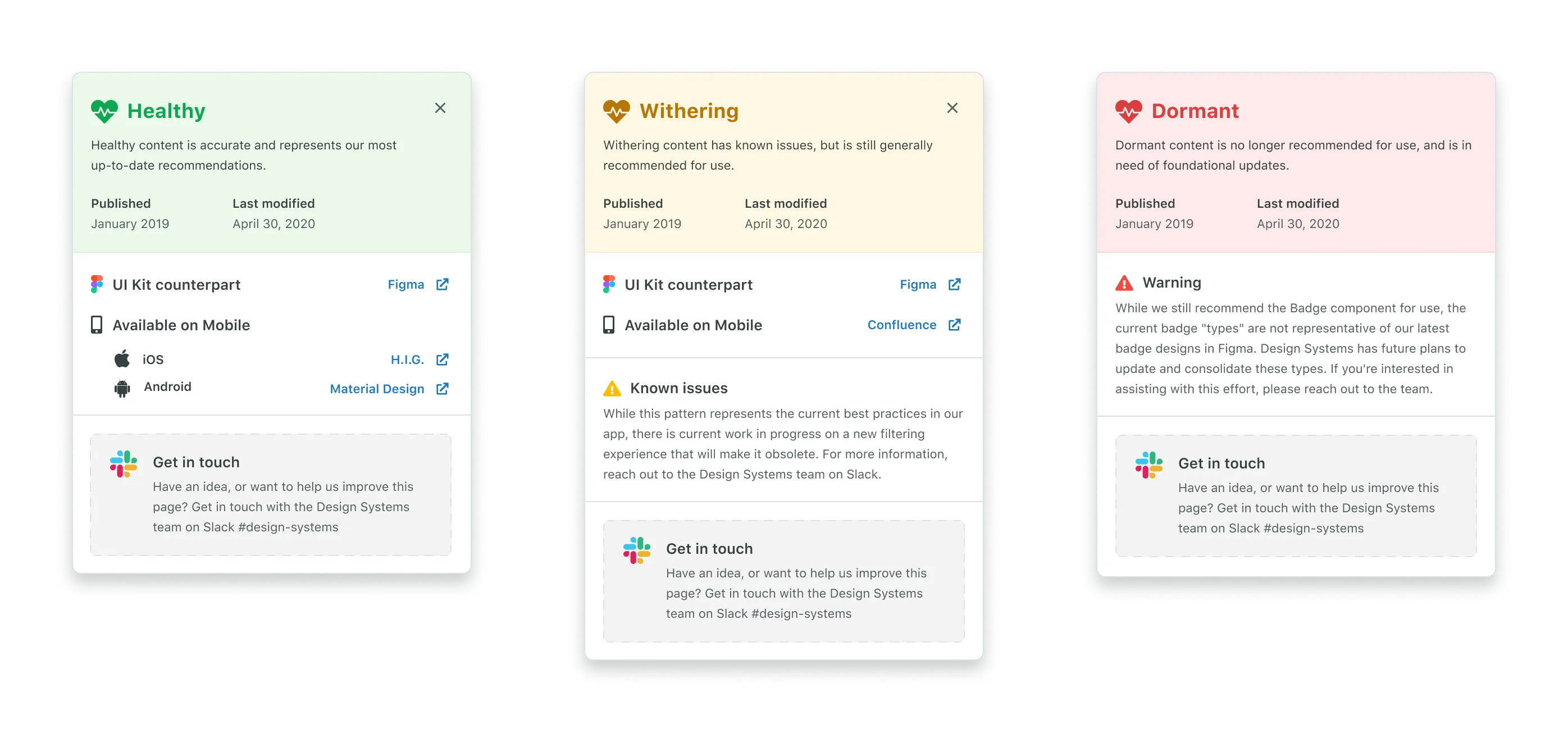
Healthy indicates content that is accurate and represents our most up-to-date recommendations.
Withering indicates content that has known issues, but is still generally recommended for use.
Dormant indicates content that is no longer recommended for use, and is in need of foundational updates.
While the “healthy” and “withering” statuses are relatively straightforward, “dormant” may not be as obvious. Initially, our idea was to only have two statuses—healthy and withering. Our rationale was that any page that was beyond withering, and no longer recommended for use, would simply be removed from the system altogether until updated content could be created.
Once we got around to actually assigning statuses to our content, however, this quickly became a problem. Were we really prepared to delete all of the content in our system that had become obsolete? Again, one of our user needs was to assist contributors with research into the contents of our system. Understanding where a pattern came from and how it developed can be crucial to evolving it. If we removed the dormant pages from Seeds altogether, we would be depriving ourselves and our users of opportunities to contribute.
Thus we decided to have a third status for content that is out of date (no longer recommended for new work), but should exist in the system in some capacity. These dormant pages represent concepts that are fundamentally valid, and they serve as a placeholder for future work as well as a historical record for the contributors doing that work.
If dormant pages have some future in the system, what about pages that don’t? In our audit, we did identify content that represented patterns that are abandoned altogether, or that were created for temporary features or campaigns. Since these no longer had a place in our system, we quietly removed them.
Scorecards
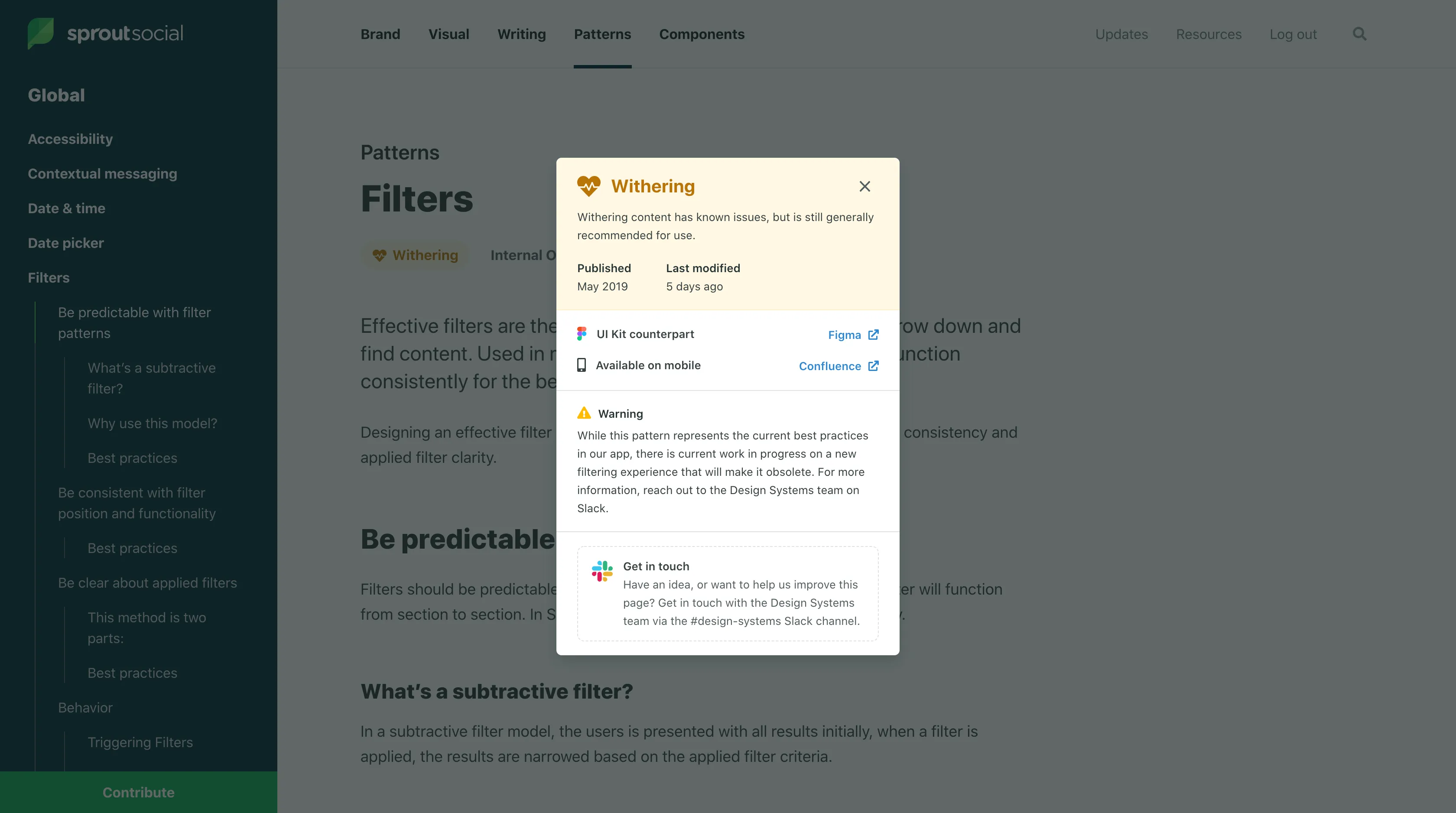
While the status label serves the purpose of quickly indicating health to our users, the content scorecard gives them access to the vital signs that informed the team’s decision on whether that content is healthy, withering, or dormant.
Scorecards open up as a modal on the page when the user clicks the status label. The contents of a scorecard depends on what is applicable for the page it represents, but all scorecards show the status label, a description of what that status indicates, the published and last modified dates for that content, and a call to action that serves to drive contribution to the system.
An example of a scorecard for a “withering” page.
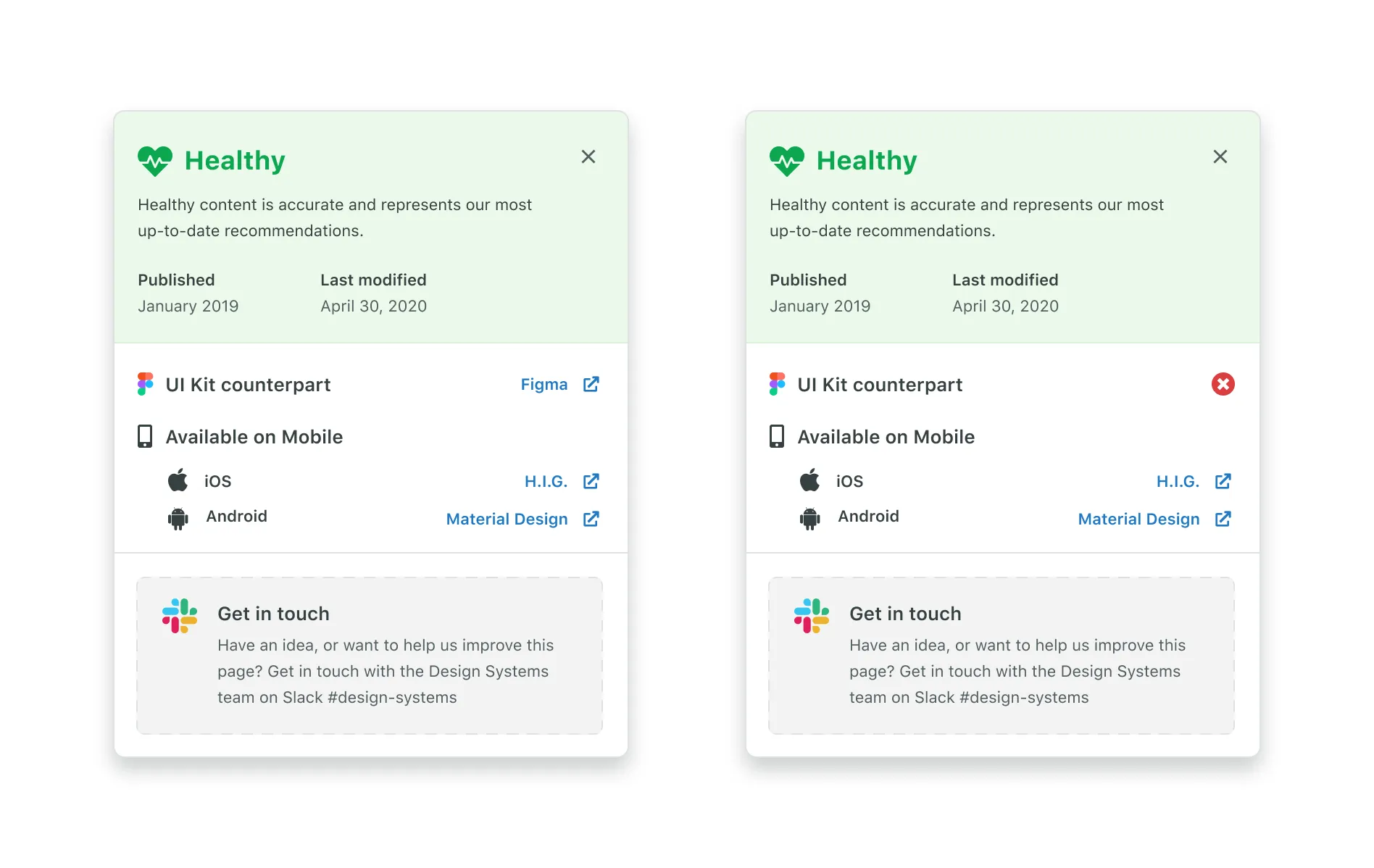
For pages representing patterns or components that should have mobile or UI kit counterparts, we display that along with links directly to those resources if they exist. If something is missing, we intentionally display that as an indicator that there is work to be done.
Intentionally showing missing items prompts users to contribute.
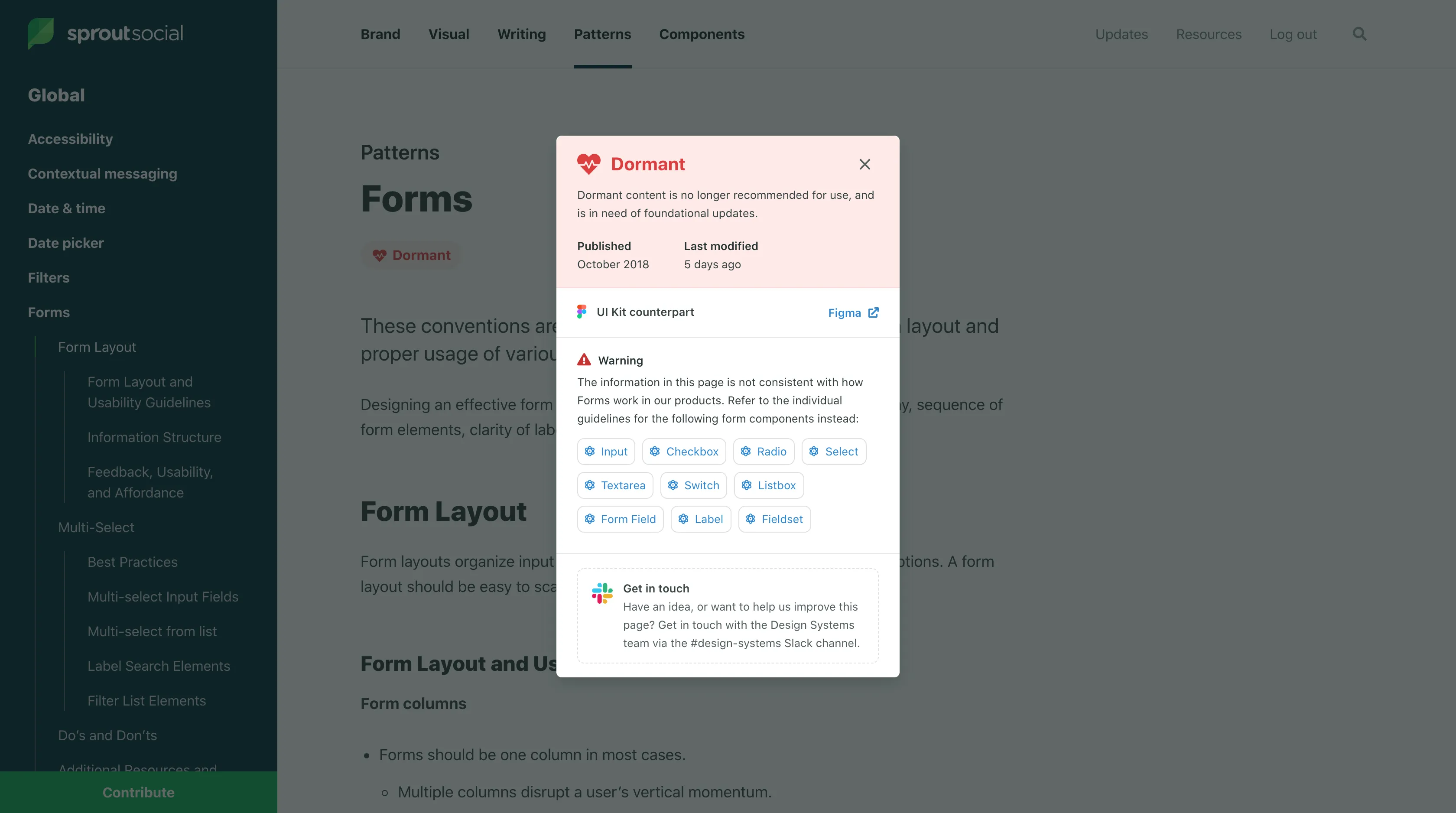
For issues and planned enhancements, we decided to allow the content to be free-form (versus the other vital signs that are displayed the same way across every scorecard). This meant that we could craft the content to best serve the context of that page’s specific health issues. This example shows the scorecard for our form documentation, which is dormant, and directs users to alternate documentation that will better serve them:
This flexibility is key, as most pages have very unique problems and considerations that aren’t well suited to a strict template.
We are excited to see how scorecards might evolve in the future as we track more data about the health of our content over time. We also have plans to integrate tools that allow users to submit ideas, feedback, or suggestions directly rather than sending users to Slack.
Making the data work for us
While not the original goal of the project, having collected so much data for our content does unlock some very exciting opportunities for both the design system team and our users that weren’t possible before.
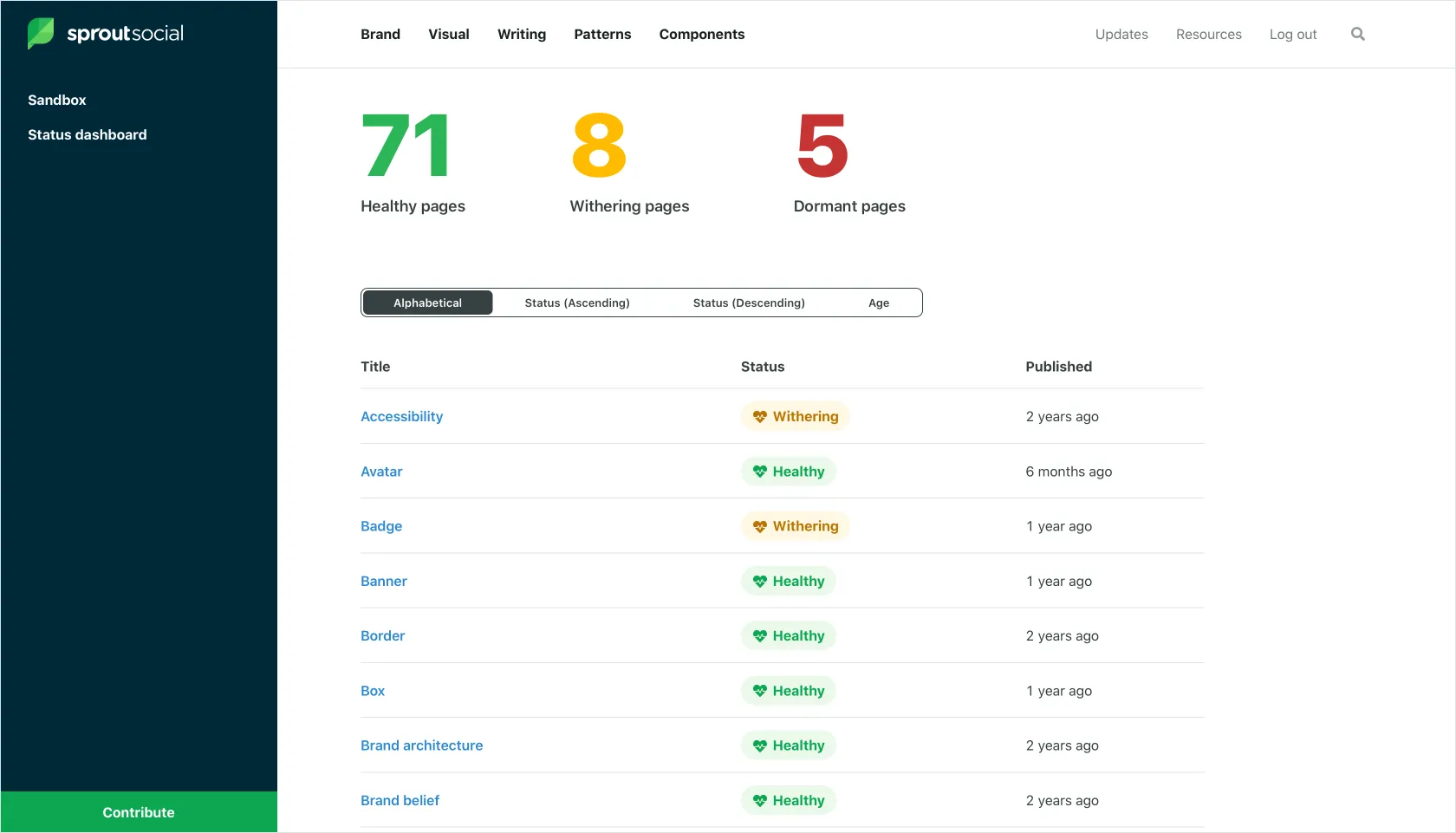
One of the first things that we built after shipping this project was an internal dashboard for the team to see the health of our system from a bird’s eye view. This page lets us see every page in our system, its status, and its publish date at a glance. It also shows us the total counts for healthy, withering, and dormant pages in our system.
A screenshot showing our internal content health dashboard.
This dashboard gives us an effective “snapshot” of our system’s health at any point in time. Our plan is to monitor and record these numbers over time, with the hope that our system’s health trends up, and giving us a concrete success metric to drive towards.
In the future, we have plans to open this dashboard up to our stakeholders as well so that they can easily see where we are in relation to our goals, and to provide our users with a one-stop-shop for finding opportunities to contribute.
There’s lots of other potential when you are tracking this kind of data. Here are a few ideas we’re exploring:
Sending notifications to the design system team when content hits a certain age. We are imagining a sort of early warning system that prompts our team to maintain and prune the garden that is our system.
Since we are now tracking the publish date for every page, we can easily determine if a page is “new” (say, less than 30 days old) and surface an indicator within our system that alerts users to new content they may not have seen yet.
Since we are tracking the elements of our system that are represented in both our Figma UI kit and our mobile documentation, we can easily generate reports for the maintainers of those resources to show them exactly where the gaps are between them and the system.
We are super excited about what this fidelity of data can do for our system, and we hope to track more and more data over time so that our understanding of our system’s health continues to grow along with the system itself.
What’s next
We learned from research that one of the biggest barriers for users who want to contribute to Seeds is understanding what our system needs. Users are much more likely to actualize their contribution if they feel like they are working towards a well-defined result as opposed to self-initiating a system change.
Our ultimate goal with this work (and the work planned to follow it) is to create a sustainable model of growth for our system. Our design system team is small (2 people), and constantly inundated with feature requests, bug reports, and suggestions for changes to our system that we could never reasonably hope to accomplish alone.
We know what we need to crowd source this work if we are going to keep up with our brand, products, and users as they evolve. Doing so will require us to collect, organize, and advertise the necessary changes to potential contributors in order to connect their desire to participate with an attainable and finite goal. Exposing content health is our first step towards this—we hope that by advertising the gaps in our system, we will provide users with organic opportunities to contribute that they didn’t realize existed before.
Simple collections of items laid out in rows and columns is perhaps one of the most common UI patterns. Whether you’re showing a literal grid of items, or building the layout of your site, grids are a fundamental element of design on the web (and you could say the same about print, too).
Given that this pattern is so common, you would expect that a good component library would have a component to encapsulate this behavior. Surprisingly though, I haven’t seen many open source libraries that have flexible but primitive grid layout components. In fact, my team’s component library, Seeds, doesn’t have one either (yet). It turns out this might be the case because getting this pattern right in a way that’s responsive and flexible is not always obvious to everyone.
Maybe that’s because for a while there wasn’t a really clean way to add gaps between CSS flexbox items. This will get better with the gap property for flexbox, but that’s not ready for prime time yet in all browsers (you could progressively enhance, though). You can work around this however, and this tweet from Devon Govett shows how very succinctly:
The basic idea here is that each child item in the grid has spacing around it, which creates the desired gap between items. A negative margin around the parent is applied to cancel out the unwanted spacing around the outer edges of the child items. Voila, you’ve got gaps between items with no errant spacing.
Combined with flex-wrap, your grid will effortlessly wrap into multiple rows, and the child items can be sized explicitly or implicitly. I prefer to use child items that are explicitly sized with percentages, which makes things nice and flexible. If you do this, you’ll want to use padding instead of margin for the child items.
Some form of this technique is what I have landed on for grid components in my personal projects, and it works really well. It’s also responsive as long as the child items are, which is nice.
With this technique, instead of using breakpoints to specify the screen size where your items should stack, you specify the minimum size an element should be before it stacks. I like this because it encourages developers to think about responsive design in terms of behaviors instead of screen sizes.
The code above will flow items into the grid with as many as it can fit on one row while keeping each item above the minimum width. Pretty cool.
It’s important to note that this only really works if you want every item in the grid to be an equal width. I use a lot of grids with variable-width items, so I tend to prefer the flexbox technique. This use case is a great example of where flex still has its places, even though we have CSS grid—flexbox was made for flexible children, and CSS grid was made for well-defined grids.
I want to be clear there—CSS grid can totally handle grids whose children have varying widths, but you need to specify those widths up front, whereas I prefer to use percentage widths and have items flow to the next row automatically. Some are okay with this tradeoff, and have grid components that have you specify the grid-template-columns property for the row. GitHub Primer, for instance. If you want auto-flow rows in CSS Grid (which I do), all the columns have to be the same width.
There is one subtle bug with the implementation of the CSS grid technique above, though. If the minimum width of your items is larger than the viewport width, items will overflow and be clipped. You see this on smaller screen sizes particularly. Lucky for us, the fix is simple, we can simply change the variable that controls our minimum width on small screens using a media query:
This ruins the clean, “0 breakpoints” aesthetic of the original solution, but it is just one breakpoint and the logic is pretty self explanatory. The value you use for that breakpoint totally be a token from your design system, of course.
So which technique should you use when building a grid component? I would ask myself: are the child items of the grid all the same width?
If the answer is yes, I’d recommend going for the CSS grid solution.
If the answer is no, you’re better of going with the flexbox method and having each child define its own width.
Hopefully once the gap property in flexbox is supported by most browsers we can simplify our implementation a bit. I’d definitely recommend wrapping this pattern up into a component so that consumers could upgrade down the road without a breaking change.
I’m also not the only person thinking about this right now. Max Stoiber has been thinking it through recently, and also has some interesting ideas about how to solve this with a reusable component.
Any way you go — it’s so nice how much easier this has gotten over the years with tools like flexbox and CSS grid, and it will only get easier in the future with properties like gap.
Update: I discovered this post by Evan Minto that describes how to use the CSS Grid technique above without using a breakpoint. His technique takes advantage of the min function in CSS, which has good but not universal browser support. Keep this in mind for future implementations.
In a recent project, I needed a way to create unique identifiers that met these criteria:
Human readable (and human friendly)
Short
Random
Creating short and random IDs is pretty easy, but making them human readable is a bit trickier, since you’ll need a list of words to use. I knew that Glitch was doing this well — when you create a new project you get random names like “reminiscent-chickadee” or “cultured-tadpole”. That’s exactly the sort of thing I wanted.
I got to digging, and it turns out that Glitch has opened source their word list on GitHub. The friendly-words repo houses lists of words in four categories that are friendly (the Glitch folks are friendly, and I know they take great care to use friendly language) and available as a package on npm.
Once I had that, it was super simple to wire up a function to return a string generated from these word sets:
Thanks to the folks at Glitch for making this awesome resource available to the community! Check out the repo on GitHub to learn more:
This post from Brad Frost on design system governance is a really great read. Defining a systems governance process that works with your team is really hard work, but it’s crucial to developing trust with the users of your system. Mapping it out like Brad does here is really helpful.
One of the things my team talks about all the time is how underutilized the home pages of design systems often are. With such a wide range of information being accessed by many different people, how can you make it useful for everyone?
Homepages are also often used as explainers for what the system even is, and how to make sense of it. That use case seems to suggest that it’s designed for the first time visitor, which is odd, because a design system’s primary users are usually repeat visitors.
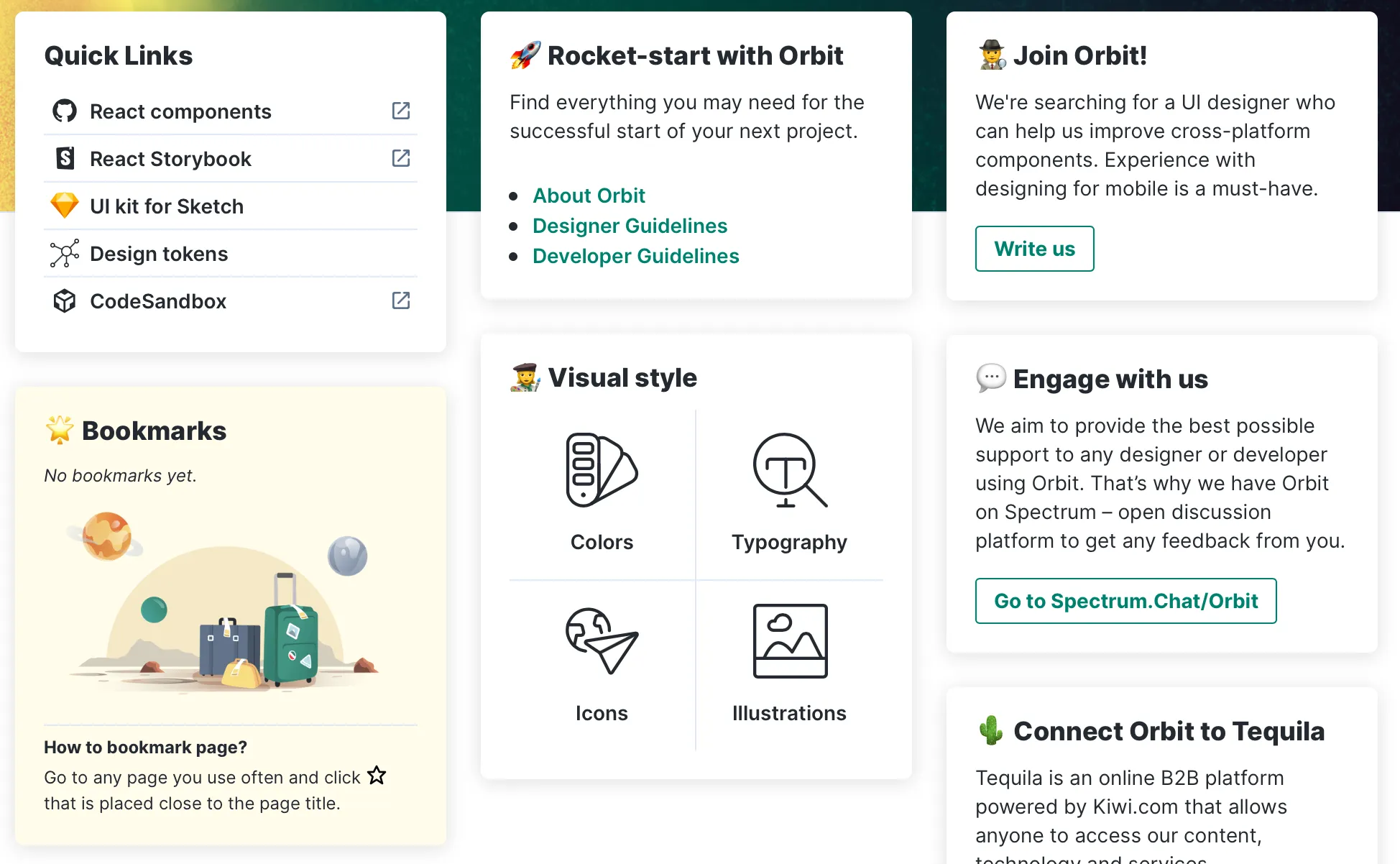
I like Orbit because it has a homepage that is heavily geared towards the folks using the system every day. The first think you see are the “quick links” that direct you to what are no-doubt pages frequently accessed by the Kiwi.com teams.
Right after the quick links is a section listing your bookmarks, which is my other favorite thing about this system.
Orbit does a great job of making its homepage truly useful.
Bookmarks
The primary artifact of most design systems is a website that houses all of the resources and documentation around the system. It makes sense considering that websites (hypertext) are really good at organizing information and making it easy to navigate.
I’ve often thought of good design system sites as good hypertext systems — the really interesting ones go far beyond the features of the web (which is a really a pretty lousy hypertext system, what without crucial features like backlinks, etc.)
Orbit has a feature that is common to most hypertext systems, but is often missing from design system sites, which is the ability to bookmark pages. Once a page is bookmarked, it’s listed on the homepage for quick access, and available anywhere on the site from within a slide-out drawer.
This makes so much sense. Lots of people using design systems every day are often diving into very specific pages. Why not make those easy for them to access, and prioritize them over the other content in the UI?
Well done to the team at Kiwi.com. Orbit is awesome! 👏
The idea of CSS resets is fascinating to me. There’s something about bringing order to a chaotic system that is really pleasing. And also fine-tuning all of the rules to work just right for a particular project or use case.
Everyone has their own take on CSS resets (including me), and I love picking through them to see what I can learn.
In this modern era of web development, we don’t really need a heavy-handed reset, or even a reset at all, because CSS browser compatibility issues are much less likely than they were in the old IE 6 days. That era was when resets such as normalize.css came about and saved us all heaps of hell. Those days are gone now and we can trust our browsers to behave more, so I think resets like that are probably mostly redundant.
Modern CSS resets can be a lot leaner than resets of the past.
Andy has an interesting technique for handling resets on elements that typically have pretty good user defaults, like lists.
I will mention the situation with lists, though. I select only lists that do have a class attribute because if a plain ol’ <ul> or <ol> gets used, I want it to look like a list. A lot of resets, including my previous ones, aggressively remove that.
I think this technique is great, expecially if you’re working in a pure CSS or CSS preprocessor environment (or when you’re writing pure HTML/Markdown/etc). This doesn’t work for me because I often use MDX to replace the rendering of pure HTML elements with custom React components, and those usually have class names applied via Styled Components.
A few more bits from Andy that I will be stealing for my own reset:
body{scroll-behavior: smooth;}
Not all browsers support that yet (Firefox does), but it doesn’t hurt to add it to projects now so that they get smooth scrolling once browsers get on board.
@media(prefers-reduced-motion: reduce){*{animation-duration: 0.01ms !important;animation-iteration-count: 1 !important;transition-duration: 0.01ms !important;scroll-behavior: auto !important;}}
Remove animations for folks who set their OS to reduce motion. Brilliant.
If you want to dive right into the code, Andy’s reset is also on GitHub.
Another one of my favorite reset projects is CSS Remedy from the Mozilla development team (primarily Jen Simmons, I believe. Thanks Jen!)
CSS Remedy is a bit different than other resets:
CSS Remedy sets CSS properties or values to what they would be if the CSSWG were creating the CSS today, from scratch, and didn’t have to worry about backwards compatibility.
So many web developers have struggled with the quirks of CSS and wished we could do something about it, so it’s cool to see browser developers weigh on on how they might solve some of those problems.
I really encourage you to dig through the CSS Remedy code yourself. It’s all beuatifully commented and documented. It’s also very cool to read through the issues and pull requests on GitHub to see how best practices evolve as folks weigh in with their use cases.
When I recently redesigned this site, I removed the light/dark mode toggle that I had before. It was difficult to iterate on the new design quickly while supporting both light/dark mode and thinking about both when adding new features to my site was annoying.
I don’t care for “pure black” dark modes, so instead of inverting by 100% (like Daniel suggested), I went with 90% to make the dark colors a bit softer.
Daniel’s tweet suggests rotating the hue by 180deg, but I wanted to change my colors palette entirely in dark mode, from white and yellow to gray and purple. So I played with the value in the browser until I found a value for hue-rotate that I liked.
And, of course, I applied some styles to remove the inversion on things that shouldn’t be inverted (like images):
All in all, I really like this solution! It’s not perfect, but I never have to think about supporting both modes when I built something new. I’ve also noticed that having a filter on the whole page isn’t great for performance in some browsers, but I’m semi-okay with that since this is just a personal site.
Probably don’t use this for an app (or anything that someone pays for or relies on).
In JavaScript, you can use the textContent property of a node to get the text representation of the node and all of its descendent nodes. For instance, if your node looked like this:
<p>This is some text with <ahref="/">a link nested within it</a>.</p>
Then node.textContent would give you the string representation of all the text within: “This is some text with a link nested within it.”
This property can be useful in a lot of scenarios, but it only works on DOM nodes, so you can’t use it to get a the text content of a tree of React components. However, you can create a custom hook that does just that:
In the code above, we define what’s called a “callback ref” in React. This function will get called whenever the ref gets attached to the node, or when the ref value changes.
If the node exists, we grab the textContent and set the current property of our ref to that value. Then, we return the ref for our consumers.
In the consuming code, the user calls the hook (with an optional initial value) and then attaches the resulting ref to whatever node they would like to read the text content of. The text content itself can be accessed through the current property of the ref:
const textContainer =useTextContent(null)return(<div><SomeComponent ref={textContainer}This is some text with<a href='/'>a link nested within it</a>.</SomeComponent>{textContainer.current}</div>)
One of my favorite uses for this hook is to ensure that React components have accessible title attributes without requiring the consumer of the component to pass an explicit value for the title. For instance, imagine a Card component:
The contents of the anchor tag here isn’t enough to be fully accessible (view more of what?), but we could fix that by using the textContent of the card title:
const textContainer =useTextContent(null);return(<div><h3 ref={textContainer}>{props.title}</h3><a href={props.href} title={`View more info about ${textContainer.current}`}>
View more
</a></div>);
Now, users relying on a screen reader get an alternate title that describes what they will be viewing more of if they choose to follow this link. And even better, the consumers of the component don’t have to worry about passing a string specifically for this purpose.
This doesn’t excite me because it will change the way that we build apps (it likely won’t for a while), but because of how it will change a developer’s ability to get started creating new websites that use tools like React. In the not-too-distant future, “vanilla” web development will look a lot like how we develop the web at scale. The barrier of entry will be lower than ever before.
Sprout Social’s design system, Seeds, has done a lot of growing up since it launched in October of last year. When we launched, our system was home to four categories of guidelines and principles: Brand, Visual, Writing, and Product. A healthy showing, for sure, but something was suspiciously missing —components.
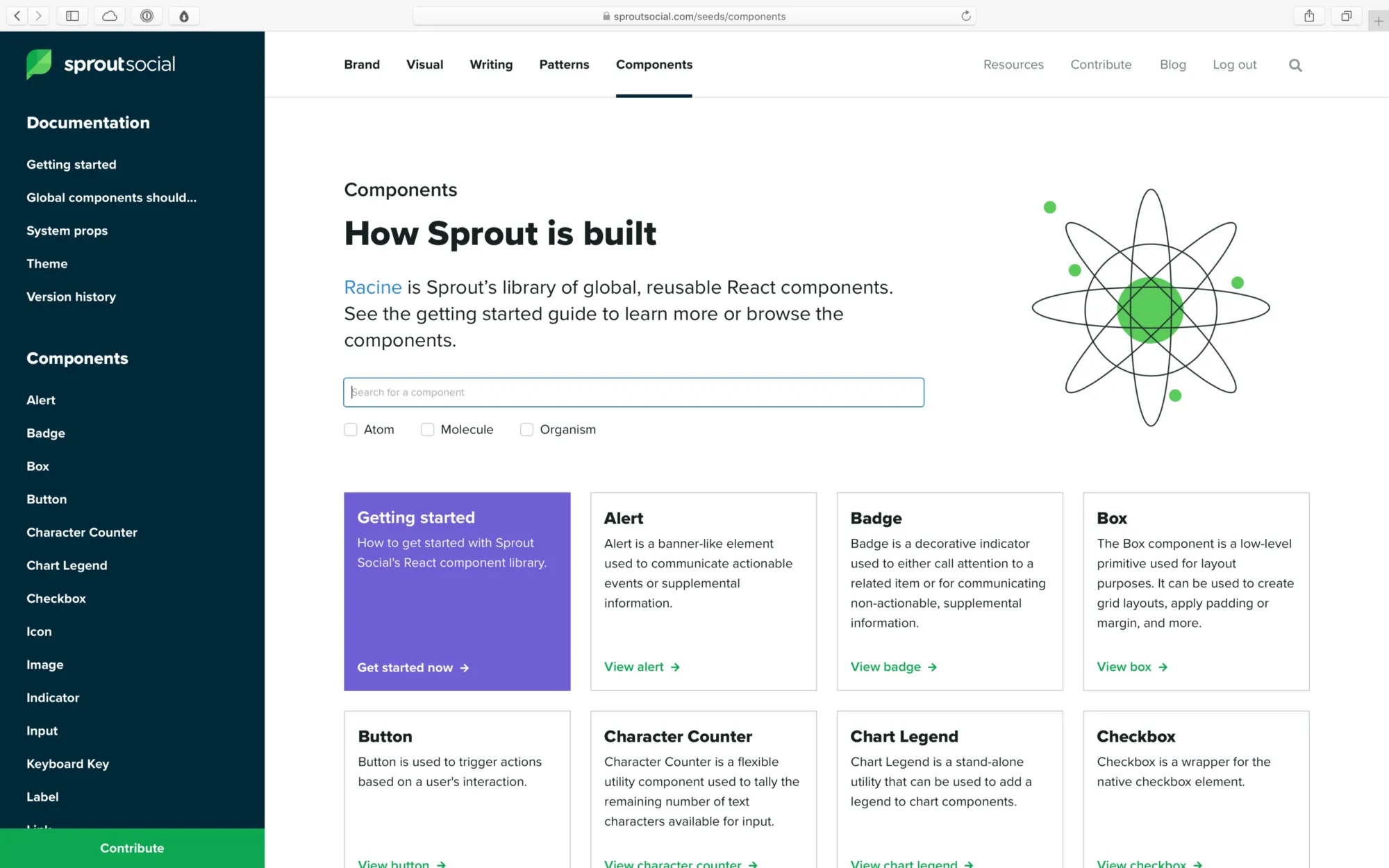
Sprout has had a React component library longer than it’s had a design system. We call ours Racine (after the avenue in Chicago where Sprout was once headquartered), and it has long been the source of truth for component patterns in our web app.
At its core, our component library was two things:
A website, built on Create React App, that acted as a local development environment for our developers and a documentation website for stakeholders across the company.
What began as a slim, hand-crafted tool slowly grew more bloated over time. Racine was passed around by developers who had the time to work on it, but there was no dedicated team to manage it. Eventually, neither the local development experience, nor the experience as a documentation site, were delightful for anyone. We realized the component library was holding us back more than it was helping us.
We needed to fix this, and fast.
When we set out to build our design system, we chose to start from scratch. We didn’t want to adopt any of the debt that our older systems had accumulated, but we did want to use what we had learned from our previous attempts at component libraries to build something strong and stable for the future.
We knew how silly it would be to have component documentation separate from the design system, and thus integrating it would be our highest priority after launching our system. We also knew that it presented us with a fantastic opportunity to not only port the documentation into Seeds, but to make every inch of the experience better along the way (for both developers and consumers).
The design systems team at Sprout Social is relatively small. Our team of 3 (including myself) serves design and engineering teams of well over 30 people each. I want to share some of the tools that our team used to build a component library that all of those folks love using.
Separate development and documentation
Today, Racine lives on as our component library. But no longer does it try to do the job of development tool and documentation site. The documentation now lives in our design system, and our component library is just a tool for building, testing, and using components in web projects at Sprout.
Our component library now lives right inside our design system, at seeds.sproutsocial.com/components
We learned over time that when the experience of building a component is intertwined with the experience of documenting it, the latter tends to suffer. We had many developers who would build and ship new components in our library for themselves without documenting them for others.
Documentation will always fall short when it’s treated as a subtask of the development process, which is how our component library operated in the past. We wanted to change that by redesigning our documentation to make sure that both designers and engineers were invested in its success.
So, we decided to split it into two separate experiences:
The documentation for our components moved into our design system, alongside all of our other patterns and guidelines.
We added a separate local development environment based on Storybook.
Storybook gives our developers an extremely fast and lightweight environment to build and test components. Documentation happens in our design system, which is a custom-built site powered by Gatsby.
Previously, when a new component was created it would appear in our documentation site by default, whether or not it had been properly documented. Now, even if a developer adds a new component, that component isn’t “available” until we’ve written thorough documentation for our system. This puts the task of documentation on equal footing with the task of development.
On that note, we also learned how crucial it is to apply friction in the right places. We applied friction to making components available to our entire organization, and that means we now have more time to be strategic about how our work is rolled out. We can design micro education and marketing campaigns that not only increase awareness more broadly, but also make our teammates feel more supported and invested in the continuing success of our system. That investment pays us back tenfold in the form of feedback and contribution.
We’ve explored the idea of these micro campaigns in a few ways that have helped spread awareness for our component library internally:
We’ve held a series of optional workshops with our teammates (not just engineers!) where we leveraged our design system and component library to prototype UI that matches our product patterns.
For a few high-value projects, we created internal landing pages with Seeds that serve as hubs for information about the projects and their teams.
We are currently exploring the idea of a series of “sponsored” Slack posts that highlight our component recipes. These recipes are short snippets of code that demonstrate how to use our components to solve a common UI problem or create a pattern often seen in our app. We want to drip these out to our developers in the form of small, well-designed Slack messages that get shared in common channels as a way not only educate, but also to drive excitement.
Empower authors
Being able to focus on documentation in isolation from development has proven to be crucial for us, and it has allowed us to discover that the key to facilitating really great documentation for a design system is to focus on two key areas of the experience:
Authorability. People are busy, and they have better things to do than spend their time writing documentation. Plus, writing good documentation isn’t easy. We wanted to remove as many points of friction as possible to make sure that the authoring process wasn’t keeping anyone from contributing.
Interactivity. People don’t like writing documentation and they don’t like reading it either, especially when they are trying to get their jobs done. We didn’t want our documentation to feel like a manual that needs to be read from cover-to-cover, but instead like a tool that can be used.
MDX, if you’re not familiar, is described as “Markdown for the component era.” Simply put, it’s a tool that allows users to write React components inline with their Markdown, which solves these two problems for us very well.
Markdown is well known and easy to pick up, and many of the tools that our team already uses (like Dropbox Paper or Confluence) can export content to Markdown. That means our teams can write wherever they want and we can drop their content directly into our system, which lowers the barrier for authors to get started.
And, of course, the inclusion of React components means we make content more interactive by dropping in any UI we want into our documents.
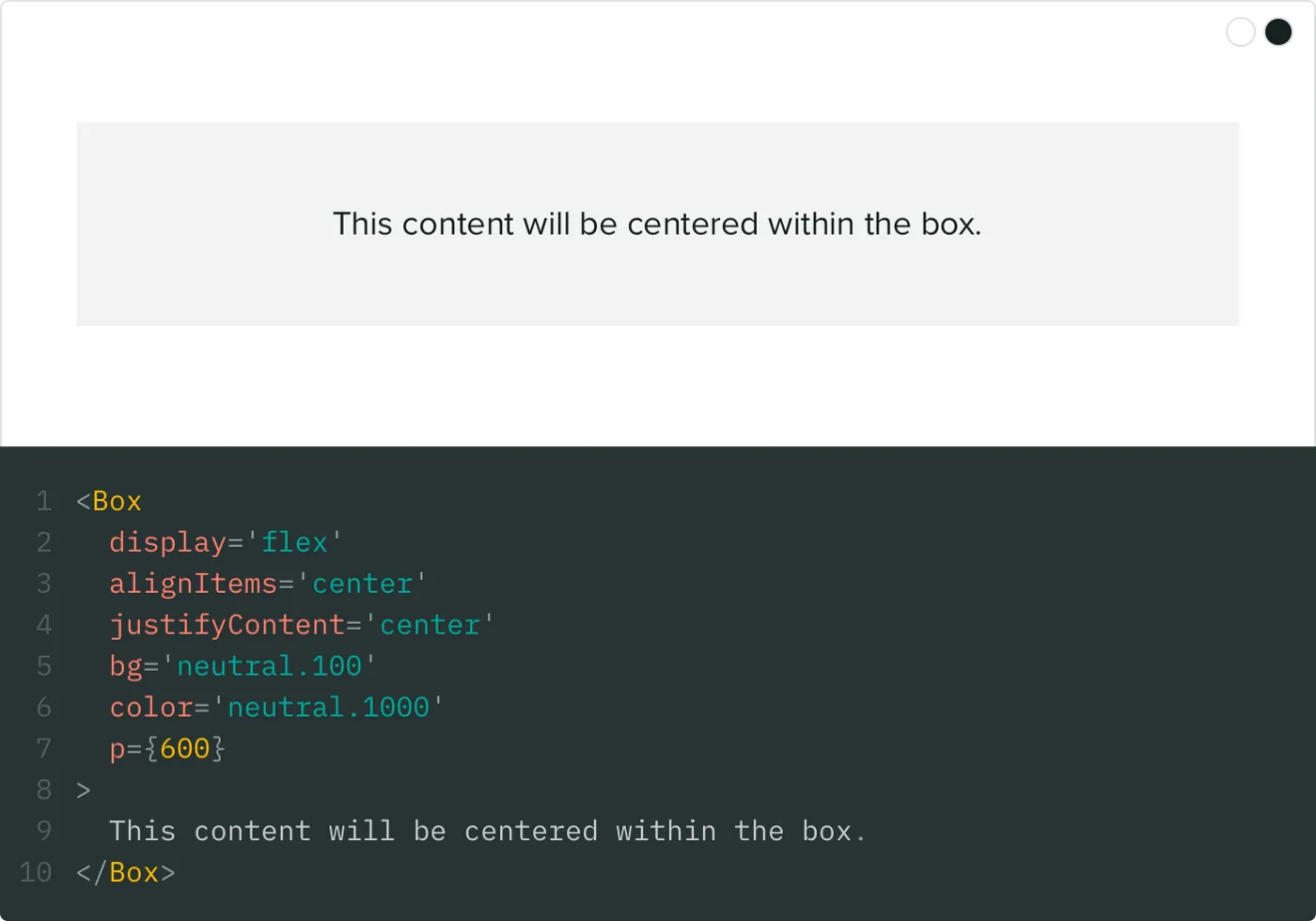
MDX even allows us to customize how native Markdown elements are rendered. For instance, authors can write a regular Markdown code block, like this:
```jsx live<Boxdisplay="flex"alignItems="center"justifyContent="center"bg="neutral.100"color="neutral.1000"p={600}>
This content will be centered within the box.
</Box>```
and we can output an interactive, editable code block in our design system that looks like this:
Example of an interactive code block from Seeds
Imagine how difficult it would have been before MDX to achieve something like this without the author of the documentation having to hand-write HTML or React.
MDX not only allows you to import any React components, but also allows you to specify a set of components that are available in the global scope. This means we can have “shortcode” like components for rendering common elements.
For instance, to embed a video from YouTube, authors can just use the shortcode without having to import anything:
<Youtubeid="abc123"/>
For our component documentation, I made a shortcode that renders the table of component properties for any component in our library:
<PropTablecomponent="Button"/>
Good tools don’t make a design system, and they won’t increase engagement with your system if you aren’t focused on solving people problems. But great tools can lower the barrier of entry to contribution, and they can make the chore of maintaining a system much less tedious (which gives us more time to focus on people).
Delight the consumers
Great documentation should be less like a document and more like a workshop. Not only does interactivity make the experience more enjoyable, but it also lets us communicate more information to our consumers.
We’ve tried not to make any of the content in our design system “templated”. When contributors author new content, we don’t give them a structure to fill with information. Instead, we try to let the information inform the structure itself. Here are a few cool examples of this from our system.
Interactive code blocks
Every Markdown code block in our component pages turns into a fully editable sandbox for the component. Being able to try out different combinations of props is huge for both our developers and designers. Each code block is like a mini prototyping tool that makes writing code seem as simple as changing a few values.
Those editable code blocks are all thanks to an excellent library called react-live. One of the best features of react-live is that it allows us to specify a global scope for every code block on our site. We threw all of our components into the global scope, so that no matter what page you’re on you have access to all of our components. If you’re on the page for the Icon component, and you want to see how it looks inside of a Button, you can just try it out right there on the page.
That doesn’t just benefit our consumers. I can’t count the number of times I have used this for education and advocacy purposes. When a teammate reaches out with a question about how to something should work I can jump into a code block on Seeds, prototype a quick solution, and send over a screenshot with the code. In the future, we may even build upon that by having a “share” button on each code block that exports an shareable image (similar to something like Carbon).
Token tags
At the core of our design system are our design tokens — the atomic values that represent our color palette, typography scale, motion guidelines, etc.
We offer our design tokens in a variety of formats (Sass variables, JavaScript constants, etc.), and we reference them all over our design system. Instead of just referring to our tokens by name when we are writing content for our system, we created what we call Token Tags (patent pending):
This Token Tag is for the 700 shade of our purple color palette.
That’s an example of a color token tag, which gives the reader an immediate visual reference to the actual color (instead of just a cryptic Purple 700). When the reader hovers over the tag, they can see the hex value for the color, and clicking the tag will copy the hex value to their clipboard:
This idea is a great example of ways we are using MDX to make our documentation more interactive, and in turn bringing more value to our consumers instead of making them dig for it themselves.
Typography playground
Another great example where breaking out of the usual format allowed us to deliver a better experience is on our Typography page.
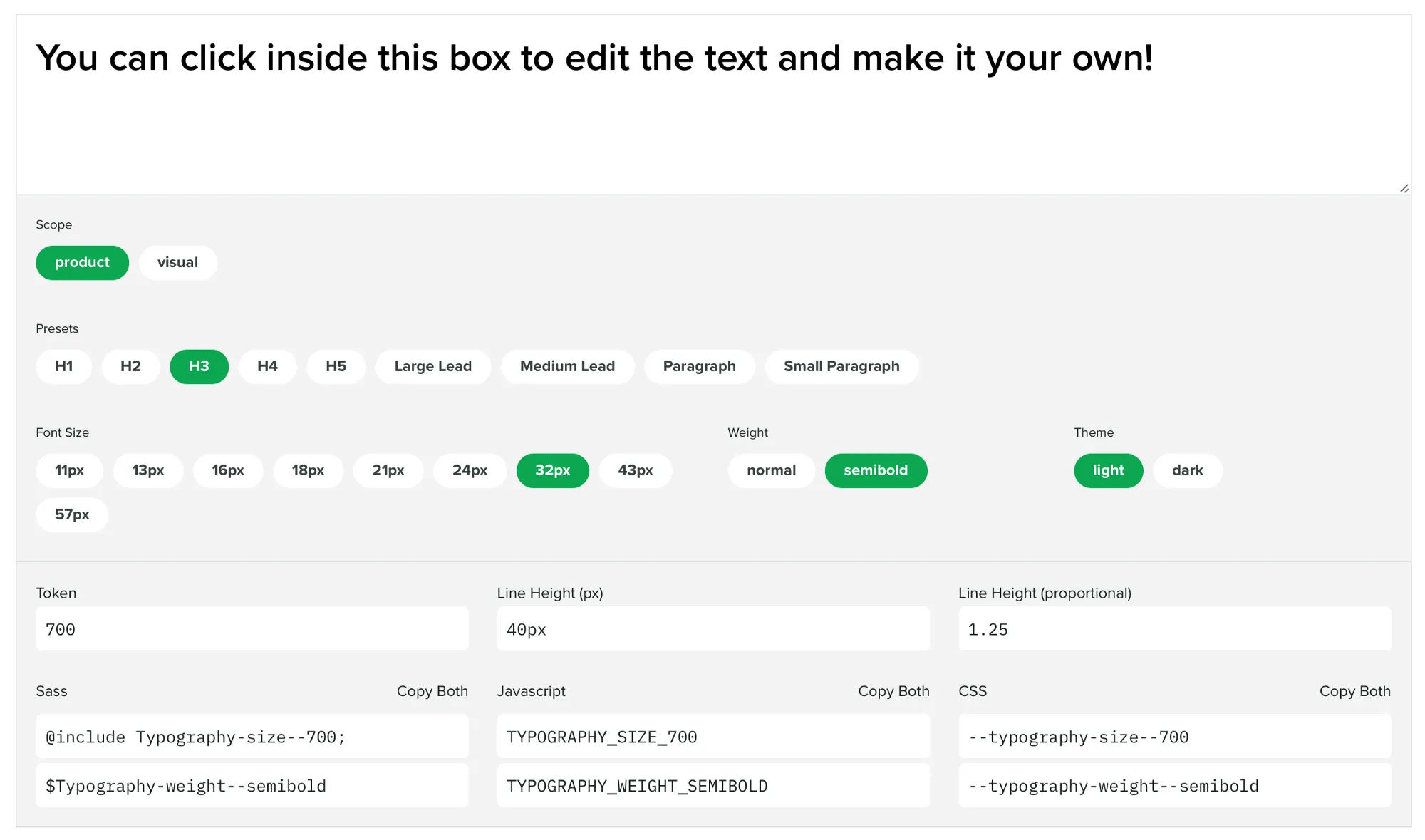
We have a complex typographic scale that differs between our product and our brand and marketing materials. Instead of listing this out in a table, we built an interactive tool that takes inspiration from the websites of our favorite font foundries:
Type some text, pick your options, and then copy the tokens for Sass, JavaScript, and CSS.
Users can paste in the copy they would like to typeset, and then select whether it’s being used in our product or in a visual project (brand and marketing materials). Then, they’re presented with all of the valid values and combinations of values. And, of course, they can copy the design token for whatever environment you’re working in.

System props
All of our components are built with Styled Components, and we use the excellent Styled System to attach “system props” to our component. Here’s how we describe these props in our documentation:
System props apply standard sets of properties to a component that can be used to alter its appearance on the fly.
We hook these system props up to our design tokens, so that consumers of our components can customize styles using our design tokens. Here’s an example of setting a color: <Text color="green.500" />.
We are very careful about which system props we apply to which components. We don’t want consumers to be able to change every style on any component, so we break the system props out into groups (a technique which we shamelessly stole from the GitHub Primer team, who do the same for their components):
COMMON
TYPOGRAPHY
BORDER
LAYOUT
POSITION
FLEX_CONTAINER
FLEX_ITEM
Every component in our system gets the COMMON group, which allows consumers to change the margin, padding, color, or background color of the component.
On every component page in our design system, we let the user know exactly which groups of system props that component has access to. When you hover over those groups, you can see which props are included therein:
When developers first hover over these groups, their faces light up when they realize how much power is baked into our components. The system props let them compose UI in half the time, without having to write any CSS. Most importantly, system props make it laughably easy for developers to use our design tokens. When the most consistent thing is also the easiest thing, developers don’t have to break out of the system to get their work done, and you end up with a much more consistent experience.
What’s next
Getting our component library integrated with our design system is really just the beginning for us. If we were thinking in terms of version numbers, we would say that our system is now at version 1.0.0, which means there is plenty of room to grow. Here are some things we are focusing on next:
Education in the form of workshops with the web developers and product designers on our team. New things come with a learning curve, and we want to make sure we are supporting our users by helping them understand the tool we have created.
Reliability in the form of visual snapshot testing for our components. We want to be able to release updates to our component library with confidence that we aren’t breaking anything for anyone. We already unit test our components, but we will be working to integrate visual tests so we can ensure our components stay pixel perfect when we make changes.
Expanding our offering by adding more components and continuing to document existing ones. We are just getting started with what our library offers, and we want to increase contribution to our system from engineers who are not directly involved with the projects. In addition, we are updating documentation as we go in response to commonly asked questions and use cases presented by our users.
All of this work will happen in parallel with the primary task of our design systems team — taking care of people. This piece has touched on a lot of the flashy artifacts of our system, but a majority of the work happens in Slack channels, Google Doc comments, and conversations with our team. Our system doesn’t mean anything without a diverse culture of collaboration and contribution that ensures we’re accurately representing our product and teams.
Finally, it’s important to note that we didn’t do any of this work in a vacuum. I want to highlight a few people and projects that have helped us get to where we are now:
The GitHub Primer team has heavily influenced the technical direction of our system. Specifically Emily Plummer’s work on their React component library (we basically modeled our system after Primer). Thank you to the Primer team for doing all of your work in the open — people are watching and we are so grateful.
The folks behind MDX and it’s accompanying plugin for Gatsby, gatsby-mdx. Extra thanks to Chris Biscardi (the creator of gatsby-mdx) for fielding my many questions as we worked to adopt MDX in our Gatsby site in the early days of the plugin.
If you want to learn more about the design systems team at Sprout Social or what we’re up to, feel free to reach out to me on Twitter @chase_mccoy or email our team at designsystems@sproutsocial.com. And of course, you can check out our design system, Seeds, at seeds.sproutsocial.com.
I’ve been using these new APIs in the alpha release on my site for a bit now, and I’ve come to realize how great they are thanks to an example by Jason Lengstorf. He uses the new APIs to create a generic blog schema, and then creates nodes based on data from multiple sources.
This is brilliant because it means your UI can be completely agnostic of where your data is coming from. Jason’s example sources data from multiple file types locally and creates a set of generic nodes that represent a blog post. The query to get the data you need to populate your UI is very clear:
I adapted my site to do the same things, but in my case I am sourcing most of my data from WordPress, and also pulling in MDX files locally. This solves a big issue I had been facing — how could I merge and sort data from many sources by a common factor (like a date field) in a way that is abstracted from the UI code of my site. This totally solves that.
What’s great is that, as long as my schema doesn’t change drastically, I can feed in as many data sources as I want in the future and I will never have to change any of my queries or UI to support the new data sources. That’s a huge win especially when you consider the upcoming themes feature, which allows us to abstract away parts of our sites (configurations, data sources, UI, etc) entirely. These new APIs paired with themes is next level.
Congrats and terrific work to all the contributors over at Gatsby that made this possible. It’s incredible how easy it’s becoming to build great developer experiences on top of Gatsby.
I had an idea during a meeting today—what if we had a Slack bot that looked for common key words and phrases and suggested content from our design system? About twenty minutes later I had a prototype of this running and installed in our Slack workspace, and it is all thanks to Botkit and their [botkit-slack](https://glitch.com/~botkit-slack) Glitch project.
Shout out to Glitch for being incredible. I was able to remix the Botkit project and have my own version running in seconds. The app features a pretty ingenious interactive setup guide that walks you through the configuration by having you input your API keys and then giving you the exact values to paste into Slack’s app site and the Glitch editor. The process was flawless and a perfect example of a developer experience that just works.
XOXO is “an experimental festival for independent artists and creators who work on the internet,” which is exactly as amazing as it sounds.
Many of the people in my online circles have been going to XOXO since the beginning, and I knew that if the opportunity ever came for me to go I would jump on it. I was afraid that the festival was gone for good after it failed to return in 2017. Lucky for me, the Andys came back this year for XOXO’s sixth iteration, and its biggest ever.
I traveled out to Portland, OR in September (my first time visiting), and I can’t overstate how much I enjoyed my experience there. Both the city and the conference were invigorating, and I can’t have imagined a better backdrop for this group of folks. Now that the conference videos have been uploaded, I wanted to take the time to share some of my favorite topics, events, and highlights from my trip.
Art + Code
XOXO is both a festival and a conference. While conference talks took place (and were recorded) during the day on Friday, Saturday, and Sunday, festival events were in the evenings and were not recorded. I felt bad about missing some of the evening events, but the ones I did catch felt even more special because they were shorter, more intimate, and ephemeral. They left me wanting to explore and learn more about the speakers and projects I saw, and in that way the festival events stuck with me much more than the recorded conference events.
Friday and Saturday night both featured an arcade full of indie game creators showing off upcoming games as well as a dedicated room for tabletop games. Friday night featured two sets of shorter talks: Art + Code and Film & Animation.
I chose to skip the film and animation talks so that I could catch as much of the Art + Code stuff as possible, and I’m glad I did. Art + Code turned out to be my favorite part of the programing at XOXO. While I can’t share any videos of the talks (since they weren’t recorded), I can share links to some of the demos and their creators.
Art + Code was sponsored by Figma and hosted by Jenn Schiffer, Glitch’s director of community engineering. For a good roundup of the talks from the night, I highly recommend reading Glitch’s official piece, put together by Maurice Cherry. There are enough links in there to keep you occupied for quite a while.
The highlight of the evening for me was Baratunde Thurston and the demo of his app, Living While Black. The app generates headlines about white people calling the cops on black people, and asks the user to guess whether the headlines is real or not. Baratunde also talked a bit about the grammar and patterns of racism in our culture, which was fascinating. Glitch has a terrific interview with Baratunde over on their blog that I recommend you check out.
Another favorite from the evening was Janelle Shane’s talk about training AI to generate knitting patterns, and then knitting those patterns to bring them into the physical world (here’s her post about it, including pictures!). Janelle also has some hilarious examples of using AI to create art over on her blog, which she shared with the room and told stories of how they came to be. Many of the talks centered around using code to create art, which was very inspiring for my own work.
Imposter syndrome
Creatives are a highly dissatisfied bunch, often in no place more so than themselves and their own work. This is something that I have struggled with quite a bit in the past few years, and I’ve found solace knowing that others share in that struggle and that there is a wealth of experiences to learn from. No place is that more true than on the internet.
The web is often where we’re confronted with our greatest feelings of inadequacy. Members of marginalized groups especially cannot exist online without being told that they’re not good enough (among other, more awful things). But there are other ways that our self confidence and value are eroded on the internet, and Helen Rosner told a wonderful story of her experience dealing with those situations.
Another favorite of mine was Open Mike Eagle’s thoughts on this subject. He articulated how difficult it can be for a creator to communicate about their work and what it means to them:
Sometimes we need the reminder that imposter syndrome does not an imposter make. Our creative heroes face the same struggles, and they overcome it by being honest and open about their experiences. Sharing those feelings with another person (or in the case of XOXO, a couple of thousand people) is really something special.
The inclusive web
Another theme that was woven throughout the festival was that the web should be place where all people are represented. The web is what we make of it, but sometimes it’s easy to forget that we have the power to shape the form of our medium.
In what may be my favorite talk of the entire weekend, Claire Evans spoke about the women who helped create the web as we know it, and how they have been pushed to the edges of history to make room for their male counterparts. I was so inspired by the stories of early hypertext pioneers of whom Claire spoke, and so surprised to discover that their stories were unknown to me beforehand.
Jennifer 8. Lee’s talk was cut from the same cloth as Claire’s. Jennifer is a journalist and emoji activist who is a member of the Unicode Emoji Subcommittee and founder of Emojination. She spoke about joining the subcommittee and advocating for more inclusive, diverse emoji to better represent the people who are using them to communicate. She also touches a bit on emoji as language and how we use them to communicate, which I thought was very fascinating.
Portland
Hale Pele lived up to the hype as one of the best tiki bars in the country. Go with a group of friends and hang out for a few hours.
If you like Chinese food (especially dumplings), check out Duck House. The pork wontons in chili oil were incredible 😍. Pok Pok’s wings were as legendary as everyone had told me they would be. The northwest location was was less busy than the others.
XOXO succeeds because it defers to the experiences of its community. It invites a group of interesting people from the internet into a physical space to discuss, share, and question their work with other like-minded folks. XOXO isn’t one thing — it’s a lot of things that are constantly changing. I don’t expect next year’s festival to be anything like this year’s, and that’s why I am so excited to go back to Portland in 2019 to do it all again.
The Andys have created an environment that reflects the experiences of those who occupy it. XOXO is fluid and changing because working on the internet requires us to constantly change the ways we think and interact with one another. We shape our online environment, and we shape XOXO too.
It seems as though everything I gravitate towards in life tends to be at an intersection of art and technology. I spend my days building tools for designers, and thinking about how we design things for people but with technology.
Perhaps the most straightforward example though is generative art, which seems to be gaining more and more interest in my corner of the internet. I think it’s because writing code and/or designing things is so often a means to an end for many of us. Our jobs expect creativity, but demand results.
I’ve found that exploring generative art has helped me maintain a creative outlet that exists purely in service of making something that delights me. Something like that is all too rare lately.
There have been quite a few excellent resources that have helped me jump into generative art that I would like to share both as a reference for myself, and as a way of lowering the barrier of entry for anyone else who wants to try their hand at creative coding.
Some history
Generative art as we know it came about in the 1960s and was directly linked to the rise of the computer industry. I love that for as long as computers have existed, there have been people who see their potential for art as well as science.
George Nees was one of the first to show off graphics made using computers, and worked on that he called “computer-scultpures” using tools like milling machines and plotters.
Generative art is distinguished from computer-generated art in that it is autonomous to some degree. A generative artist differs from a painter or sculptor in that they are not responsible for every decision that leads to the finished piece.
Instead, generative artists create systems that can make some of the decisions alone. The artists gives the direction, but allows the computer to steer the vehicle.
This leads to a certain serendipity in the finished product. Pieces can be different every time that you look at them, and in many cases will never output the exact same piece twice. The fleeting nature of the work is what appeals to many.
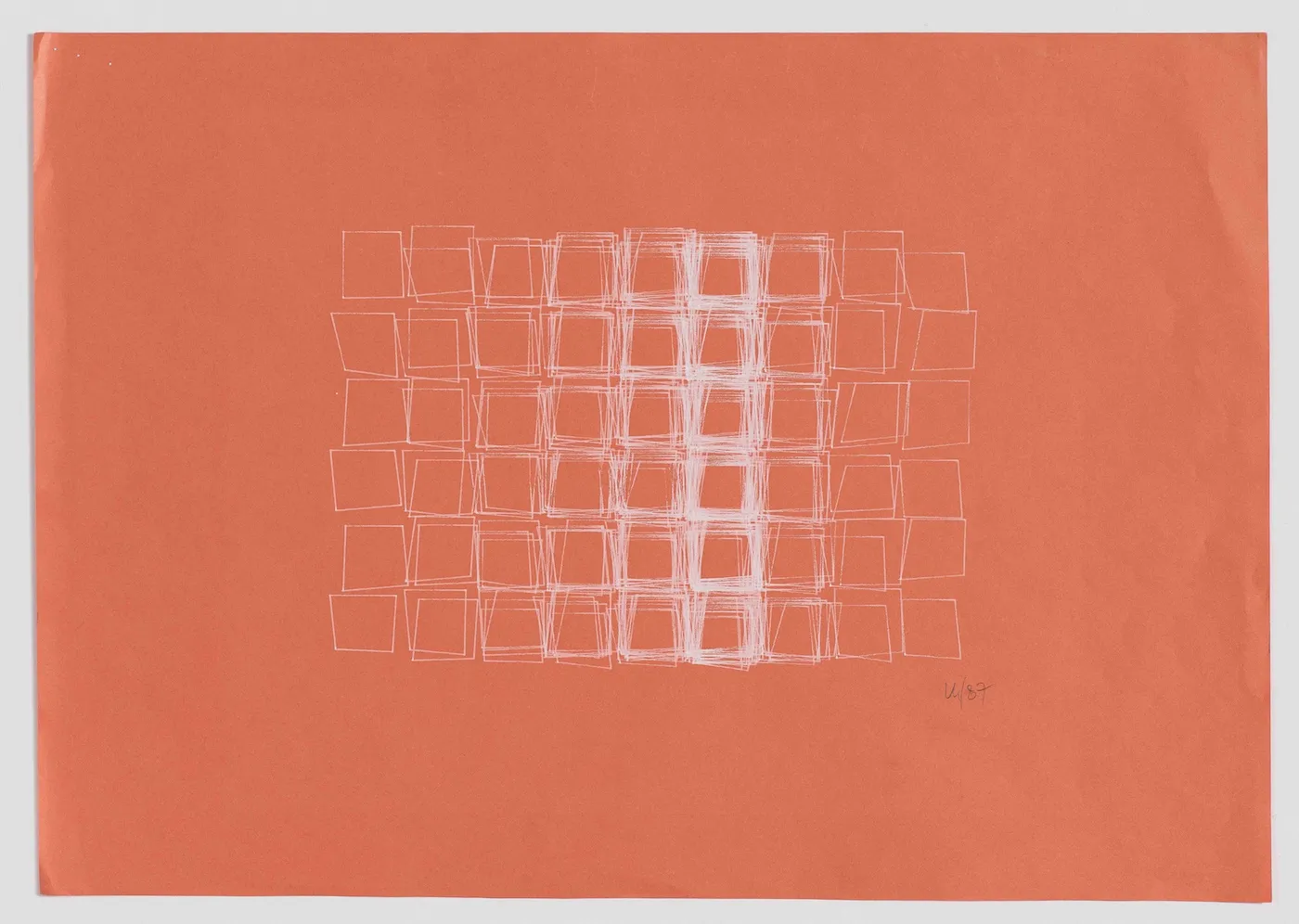
Perhaps the biggest pioneer of generative art is Vera Molnár, whose work in the space of computational art still holds up today, even though she was doing work with tools that were comparatively ancient to what we have at our disposal now. I strongly encourage you to browse throughsome of her pieces online.
In one of her most famous series, Structure de Quadrilateres, she takes a collection of rectangles and introduces randomness while somehow maintaining a natural rhythm:
I encourage you to take some time to appreciate and learn about the people who paved the way for generative art. It makes for an excellent opportunity to find some inspiration for your own work.
Practical magic
Now that you know a bit of the history behind generative art, I’d suggest jumping in yourself by learning how to create something simple.
There are lots of technologies out there designed specifically for creative coding. Arguably the most famous of those are p5.js and Processing. I recommend starting with p5.js because it’s built on JavaScript — which a lot of folks already know — and it’s easy to get started using it right in the browser.
Once you’ve got the basics down, it’s important to start learning how to introduce autonomy into your pieces using loops and noise.
Tim Holman created one of my favorite resources out there for taking your art to the next level. Generative Artistry is a series of lessons describing fundamental concepts or recreating pieces that teach invaluable skills. I learned the basics of circle packing from the site, and that allowed me to make stuff like this:
I especially love that Tim breaks down how to recreate famous pieces from some of the people I mentioned earlier, like Vera Molnár and Georg Nees.
It’s also important to cultivate an environment of inspiration around generative art. I find that because the possibilities of autonomous art are so limitless, it helps me to take a piece that I like and use it as a starting point to riff on.
Daniel Eden’s gallery is excellent not only for the pieces themselves, but because Dan accompanies each with a description of the basic logic used to achieve the result. Recreating some of his pieces helped me learn techniques that I have made use of many times since. Dan also wrote a great piece on how he got started with generative design.
Another favorite of mine is Heydon Pickering’s mutable.gallery, which features sketches that can be re-generated to produce unending, unique permutations. I love how Heydon makes it so easy to share the piece that you generate, making each one feel more special somehow.
Finally, I suggest you follow Matt DesLauriers on Twitter and Instagram. Matt’s work is amazing, and he represents the community well by sharing his processes and learnings as he grows.
I love making generative art because its edges are blurry, and I can step off of them without worrying about technique or execution. Happy accidents are easy to make and often result in some of my favorite pieces.
Ultimately, generative art is about rolling with the punches and letting the medium itself influence the work. I think flexing those types of muscles has made me a better designer overall. Maybe it can do the same for you.
Invision is writing a piece on the design team at Sprout Social, and they asked us to answer some questions about design and how we work at Sprout. I wanted to post my answers here as well since most of them probably won’t make it into the finished piece.
What’s your best advice for designers who are the only designer at the org, or even designers who can’t seem to get buy-in from executives?
The best way to get buy in is to give others no reason not to buy in. Do the due diligence of research, testing, and building before you go to bat for your ideas. Talk to people one-on-one and try to understand their hesitations to being on board with your idea. Once you know the problem, you can chase solutions.
Do other teams (like marketing, engineering, etc.) there use design thinking or any design methodologies/skills?
Every person at Sprout that touches any aspect of the product is a designer. Engineers think about how to design scalable systems so that they can realize new features. The education team designs resources and methods to teach users how to best take advantage of the product.
Our responsibility as designers is to realize that everyone here at the org designs in some way, and sometimes they need help in understanding the best way to design effectively to solve whatever problem they are tasked with. We can’t hold design as a practice hostage, as if it’s only for the select few. We need to give away our tools and knowledge so that everyone can get better.
How can we all give better design feedback?
When giving feedback, try as hard as you can not to be prescriptive about the solution. If you’re thinking in terms of the how, you might be missing important details in the why of the problem.
I like to try to create a common foundation for feedback by framing it in a standard way:
The objectives for a product are to…

1. Reach its goals…
2. For the given audiences (personas)…
3. By creating a design with the right behaviors and characteristics (principles)…
4. To produce the desired experience when used in the applicable contexts (scenarios)
Imagine you’re having a heart-to-heart with a young designer. Give her 5-10 pieces of your very best advice.
Start your process with words. Design is about communication, and writing is the purest form of that.
A picture says a thousand words. If you can create a great solution with writing, you’re on track to producing an even better visual design.
Just as writers edit their words, go back and edit your designs. Remove unnecessary flourishes and distill the design into the purest form of itself.
Understand that when you’re designing software, you can’t design an experience for a user because you can’t control the experience. A user’s experience is personal and specific to them and their environment. All you can do as a designer is architect solutions that will not disrupt a user’s experience.
Show your designs to people who don’t know anything about the problem you are trying to solve. Make it clear for them.
I don’t have the words to describe what we’ve lost in Anthony Bourdain. Instead, I thought I would share some things that I love about him. The first that comes to mind is his first visit to a Waffle House:
My bank of choice is Simple. They’re online only, care about design, and make it easy to manage money by building saving & analysis tools on top of the bank itself (instead of a third party tool that connects to a bank).
Up until this week, saving money with Simple was pretty good. Their goals feature makes it easy to bucket money into categories. My process for managing money with Simple was something like this:
At the beginning of the month, move money from my “safe-to-spend” bucket to various goals. Things like rent, groceries, entertainment, car payment, etc.
Whenever I spend money, use Simple’s “spend from goal” feature to spend it from the appropriate goal.
At the end of the month, whatever is leftover in my goals is mine to keep. I move it to a savings goal and replenish each goal with my monthly allowance for that category.
This worked pretty well. The main annoyances I had with this were that every month I had to manually refill the goals with the correct amount (after first emptying the leftovers into savings), and I had to manually set transactions to spend from certain goals.
Funding Schedules allow you to automatically move money into goals on certain dates/frequencies.
Auto Spend lets you associate transaction categories with goals, so that transactions in certain categories always spend from a particular goal. They also added the ability for transactions to “remember” what category they are in and automatically categorize themselves in the future.
These features change the game for me.
Now, my process (after some initial setup) looks more like this:
If Simple doesn’t categorize a transaction correctly, fix the category. I only ever have to do this once since Simple remembers my selection in the future.
At the end of the month, move the leftover money in my goals to my savings goal.
Boom. Simple takes care of the rest.
As far as setup goes, it’s as simple (ha ha) as creating your goals and setting a funding schedule that fits. I like to do my finances monthly, so I set mine up to automatically refill on the first of every month. Simple gives you the flexibility to choose whatever dates/frequencies you like.
Next, you choose which categories go along with which goal. My “Groceries/Food” goal is associated with categories like grocery stores, restaurants, and convenience stores. Whenever I spend money at one of those places, Simple removes it from my goal instead of my safe-to-spend balance.
Now, my personal finance is completely automated. I can set my budget and forget it (aside from the occasional incorrect categorization, which is easy enough to fix). If you use an envelope-style budget, you know that the worst part is maintaining your system manually. With these new features I no longer have to do that, which encourages me to stick to my budget instead of ignoring it because it’s a pain to manage.
With these new features, I can’t recommend Simple enough. They had a period of moving very slowly with new features, but lately they have been knocking out of the park with shared accounts, paper checks, and these new goal features.
For a chef, it may mean sourcing local ingredients before writing the menu.
A record producer may seek out up-and-coming talents to anticipate trends.
Photographers often shoot photos already knowing which edits they will apply later.
When good programmers write code they also anticipate change, so they make it as extensible and flexible as possible.
Architects never start designing a structure without understanding its location, purpose, and inhabitants.
So, what does it mean to do proactive work as a designer?
Just like a chef, we have to source ingredients (knowledge and context) before designing a product. We have to anticipate trends in the industry and know when to follow them, and maybe more importantly, when not to follow them. We have to prepare for how our designs will change with future requirements and when real users interact with them. We have to design responsibly, considering edge cases and social impact. And of course, to design well, we need to be informed about the contexts in which our work will be used.
In short, proactive design is design that takes its time to prepare for the side effects of real life.
That form you designed may not work on mobile browsers. That new feature you built might increase profit, but does it harm your user’s quality of life? Does your design system scale when you add a new feature to your product?
Designing proactively takes time, attention, and having the power to say no (or maybe “not yet”) to certain stakeholders. And if you’re not being proactive, you may not be doing your due diligence as a designer.
Designers today spend far too much time drawing rectangles and dragging them around the screen. Even designers who don’t know this kind of do know it, I think. Perhaps there is a point in every designer’s career (there certainly was for me) when the idea of design becomes less about aesthetics and more about structure.
When this happens, you’re forced to ask yourself questions about your process and how it serves the function of creating a cohesive, flexible, and supportive structure for your work. Once you move past aesthetics as your primary objective, you start to wonder why you’re manipulating shapes and colors by hand? Design is meant to function on our behalf, and instead so many designers spend their time functioning on behalf of their designs. I think this is backwards, and I think it doesn’t have to be this way.
I spent the first part of my career as a designer like most others—manipulating rectangles on a screen. Now, my day is spent writing code to manipulate those rectangles for me. At my current job, my role is dedicated to making design easier for both designers and developers. Building, maintaining, and improving upon our design systems and pattern libraries is done to enable better solutions to common problems with quicker execution times.
Pattern libraries and design systems don’t appear from nowhere—they have to be built and maintained. This process and all of its subprocesses all boil down to designers and developers making a series of decisions through a continued conversation. My job is to ask myself how I can facilitate those conversations and extract decisions from them more efficiently.
A design system has a lot of goals, but I think the most righteous of those is that it gives designers the ability to stop drawing their designs and write them instead. I propose that we start thinking of design systems as a vocabulary that we use to write design. Think about it: vocabularies have a shared origin like designers have shared inspiration and design has trends; vocabularies of the same language vary colloquially from place to place like our designs vary even internally. The artifacts representing our pattern libraries act like a dictionary—they’re a tool we used to understand the vocabulary. Additionally, the meaning of the words in our dictionary is not always derived from hard and fast rules. Sometimes people themselves can alter or change meanings entirely based on context.
Design systems, like vocabularies, are hard to maintain because they’re defined by people, and people are not consistent. That doesn’t mean they’re not worth it. Both (most of the time) allow us humans to communicate both verbally and visually with shared meaning and understanding. They allow us to categorize the things in our world, and to make statements that represent our values. Just like a vocabulary allows us to avoid communicating with charades, a design system allows designers to stop spending their time drawing pictures of a design, and instead use a common language to write what a design should look like and how it should function.
Like most good things, there are challenges. How can we create a concise vocabulary that simultaneously provides coverage over all of the things we need to express? How can the meaning of words be altered in a way that is natural and works for everyone? At what point do we alter the definition of a word whose meaning has changed based on cultural factors?
The hardest part of doing this successfully is making decisions. Getting a large group of people to agree on how things should be done is really tough, and it only gets tougher as your team grows. Doing this right involves aligning values, goals, ideas, etc. across teams, but that can often take a lot of time away from shipping feature work that, frankly, a lot of teams simply don’t have to spare. I think that a part of the solution to this is to have a team dedicated to aligning values, maintaining consistency, and advocating for a shared vocabulary between designers and developers. At my current job, we call this team the Design Developers. Whatever you want to call them, the design devs spend their days being the shepherds of the organization’s design system, and have the skills to translate decisions into actual tools for designers and developers to expedite their day-to-day work.
What’s great about thinking of product design as a form of writing using a bespoke vocabulary instead of drawing is that the handoff between designers and developers becomes a conversation instead of the delivery of an ephemeral artifact. Designers no longer have to spend their time recreating designs over and over using outdated tools, and instead can use that time to think about how the system can be usable, accessible, and delightful. They can work with design developers to improve the system for everyone instead of the parts of the product that their work touches. And developers can of course spend more time sweating the details rather than recreating work that’s no doubt been done elsewhere already.
The key to conversations is that they go both ways. For these ideas to work in practice, there must be a way for the conversation to evolve naturally and affect the vocabulary, just like our own conversations change the meaning of the words we use over time. Changes to the system must be vetted, purposeful, and most importantly, they must be communicated to everyone who uses the system. If the meaning of a word changes unexpectedly, the conversation becomes mute. That’s why we need to be careful and considered in the words we choose in order to ensure our conversations are timeless within the scope in which we’re working.
The process of governing a design system or a vocabulary varies too widely from company to company and culture to culture to say definitively what the correct solution is. There are plenty of resources out there from companies that have done this successfully, and although they are helpful, none of them will work for you out of the box. Doing this correctly involves remaining vigilant, treating everyone in your organization as a designer, and establishing vetted processes.
I encourage all designers (especially those working on bigger products with a team) to start looking at themselves as writers who are trying to articulate the solutions to problems. It is only when designers condition their colleagues to work with them in this way that design can become more than just wrangling rectangles.
When developing an iOS app, you often need to adjust constraints in order to make sure that the keyboard doesn’t obscure any of the elements on screen. This is a common problem that is an easy but annoying fix.
To sum it up quickly, any view controller that needs to adjust constraints in response to the keyboard hiding/showing just needs to conform to this protocol and then provide an array of constraints that need to be adjusted. The protocol extension has default methods that can be called when the controller is presented to add keyboard observers, and vice versa when the controller is dismissed.
With this short bit of code (available ion a Gist at the end of the post), all you would need to do to get this behavior is hook up outlets to the constraints of the views that need to be adjusted (probably the bottom constraint of a scroll view), stick them in an array, and implement the requirements of the protocol. When the keyboard is shown, your constraints will all be adjusted and animated. Sweet.
This ideas is so incredibly cool and useful and awesome and I plan to use it in every single project that requires this kind of behavior. What’s better is that the code is very easy to understand and modify for your specific needs.
After seeing this, it got me thinking about other ways protocols can be used to add default behaviors to views by injecting constraints. Every constraint you create in IB is of type NSLayoutConstraint, which means we can create very generic and reusable code very easily. Natasha the Robot has a great post about protocol-oriented views in Swift that is similar to this, except she isn’t using constraints. In that post, she demonstrated adding animations like shaking to views using protocols so that this functionality can be reused.
In a project I am working on, I have some views inside of a view controller that need to be toggled between being hidden or shown when the user tap’s a button. In addition, I want the view to animate into and off of the screen when it is toggled.
Originally, I was just creating outlets to the constraints on these views that I wanted to collapse upon and then putting all of the toggling logic into a method in my view controller that would get called when a button was tapped. This led to a lot of repeated code. For every collapsible view in my view controller, I was essentially writing the exact same code with slight variations to change which constraint I was collapsing upon. After seeing Roy’s KeyboardAvoidable protocol, I realized there was a much better way.
I started by making a protocol to represent collapsible views:
The collapseConstraint variable is the constraint that we want our view to collapse upon. I made this optional because there could be a situation where we want to use one of these views without the collapsing functionality, and in that case we just won’t set this variable and it will default to nil. The collapseView() and showView() methods are called when we tap our button, and the isCollapsed() method just returns a bool letting us know what state we’re in.
Next, I created an extension for my Collapsible protocol that defined my default implementations of those methods. I constrained my extension to only apply to UIView objects:
In my app, these view’s will be sliding into and off of the screen from the left or the right, so the collapseView() method set’s the constant of the collapse constraint to the negative value of the width (that way the view is entirely off screen). The showView() method sets the constant to 0, so that the view is pinned to the left or right edge. These methods will obviously need to be customized depending on which direction you want your view’s to collapse. If you wanted to get really fancy, you could set the direction as well as the constraint so that you can collapse in any direction with this one protocol.
The next step is just to create a view that conforms to the protocol, and declare our collapseConstraint variable:
In my app, I am putting my views into my controller using Interface Builder. So inside of my controller I just create an outlet to the view and to the constraint that I want to collapse upon (trailing for right edge or leading for left edge), and in viewDidLoad() I set the collapseConstraint variable:
I put in the animation block in order to make the constraint change animate over a given time.
Building protocols like these make creating repeated behaviors extremely simple, and IB constraints fit so perfectly into this method. I am using this technique in several places, and I highly recommend it.